# Postman & Insomnia
import { Button } from "zudoku/ui/Button";
The SecuriThings API Postman Collection includes the authentication setup.
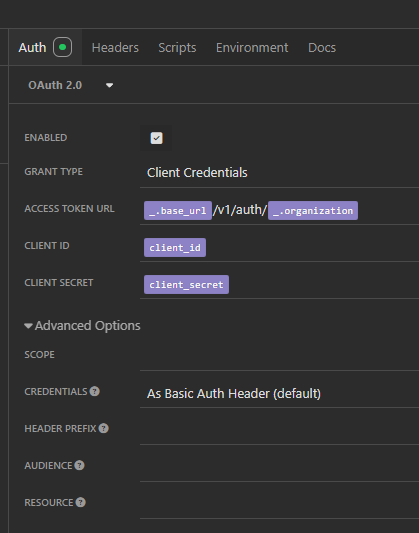
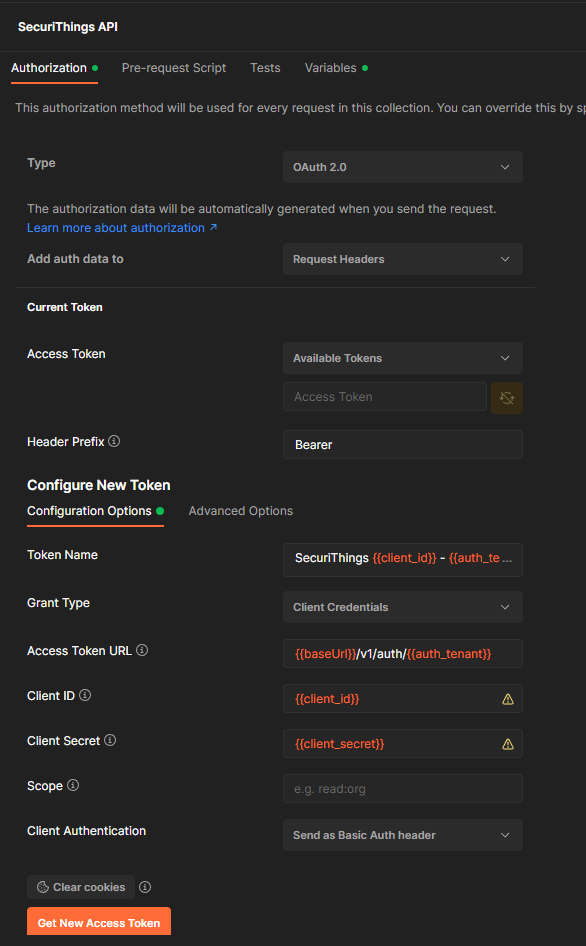
To set up Postman or Insomnia to use the SecuriThings API, you can see an example of how to set up
the authentication in the following images.
## Postman
1. Open Postman and create a new request.
2. In the Authorization tab, select `OAuth 2.0` and set `Add Authorization Data to` to `Request Headers`.
3. Set the Access Token URL to `https://api.securithings.com/v1/auth/`.
4. Change the Grant Type to `Client Credentials` and fill in the fields with the credentials provided by the SecuriThings team.
5. Change Client Authentication to `Send as Basic Auth header`.
An example of the configuration can be seen in the following image:
## Insomnia
1. Open Insomnia and create a new request.
2. In the Authentication tab, select `OAuth 2.0` and set `Grant Type` to `Client Credentials`.
3. Set the Access Token URL to `https://api.securithings.com/v1/auth/`.
4. Fill in the fields with the credentials provided by the SecuriThings team.
5. Under Advanced Options, ensure `Credentials` is set to `As Basic Auth Header`. (should be default)
An example of the configuration can be seen in the following image: